

SimplyNet Greg | February 18, 2026
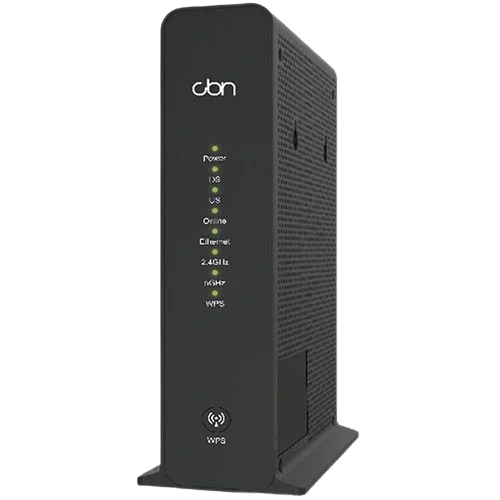
Sometimes, your internet connection might be just fine, but you are still having problems with your internet. Slowness, buffering, or dropping altogether. This can often indicate a problem with your Wi-Fi and not the internet service itself. Particularly in high-traffic areas such as apartment buildings, or homes with a lot of devices, the 2.4 GHz band can be subject to interference. The 5 GHz Wi-Fi band is much less likely to experience these issues. On the CBN CH8568 modems (our typical rental model), the default configuration has a setting called “band steering” enabled. This allows the modem itself to choose the best band and “steer” your device to it. This is normally OK, but sometimes you may wish to disable this option so that you can manually choose which band to connect to if you are having problems. These instructions will walk you through how to do this.
Step 1: Connect to the Modem (Wi-Fi or Ethernet)
In order to make these changes, you will need to be connected to the device by Wi-Fi. If you have a computer with an Ethernet port, you can connect it directly to the modem’s LAN port.
Step 2: login to the modem’s settings interface
Once you are connected to the modem via Ethernet or Wi-Fi, open a browser and navigate to: http://192.168.0.1/
Username: cusadmin
Password: The MAC address for your modem — this password is on a sticker on the side of your device, and is unique to you. Please look at the modem to find it, or contact customer service if you can’t find it.
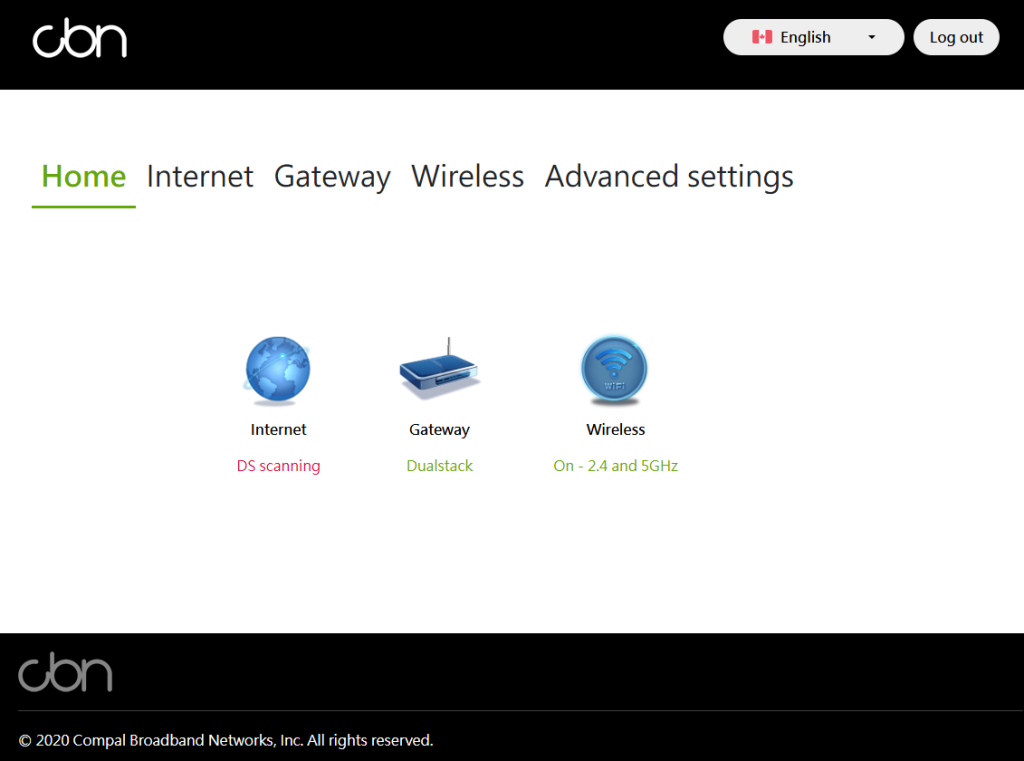
Once logged in, you should see this screen:
Step 3: Disable Band Steering
In the top menu, select Wireless, and you will see this screen:
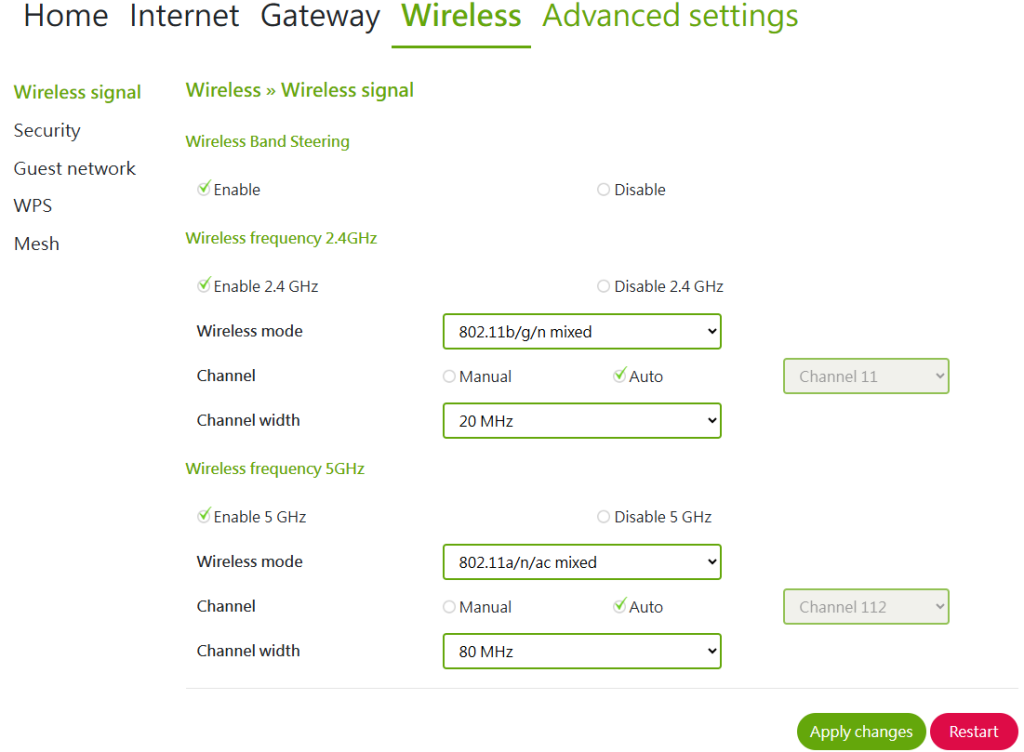 Change the Wireless Band Steering option from “Enable” to “Disable”, and make sure to click “Apply changes.”
Step 4: Rename the 5GHz Band
Once your changes in the previous step have saved, select “Security” from the left-hand menu. You will now see this screen:
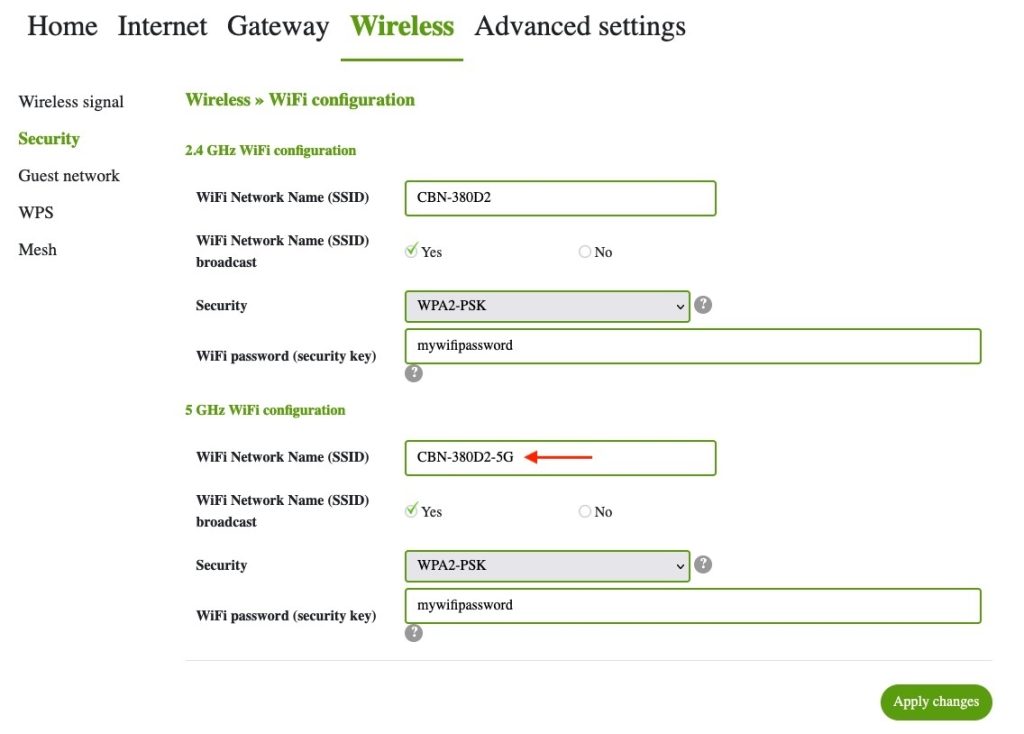
Under 5 GHz WiFi configuration, add “-5G” onto the end of your 5g network name. This way, when you attempt to connect to your Wi-Fi, you will have two networks to choose from. In the example above, you would then see CBN-380D2 and CBN-380D2-5G when connecting to Wi-Fi. You can leave the password the same for both networks, or change it for one or both, it’s up to you.
Make sure to save your changes, and then you can log out.
Step 5: Reconnect your devices
Once you have made these changes, you can connect your various devices to either the 2.4 or 5 GHz networks as necessary. You should see improvements almost immediately if you were having trouble with band steering enabled. It can sometimes take a little trial and error to figure out which band will work better for which devices. The 5 GHz is generally faster and experiences less interference, but doesn’t go through walls as well as 2.4 GHz, for example. In general, however, you should experience better performance on the 5 GHz band if you were having trouble on 2.4.
And as always, feel free to get in touch with us if you are having any trouble with these instructions, or if you are still experiencing internet problems after these changes have been put in place.
